
How to Enroll
Thank you so much for your interest in Danceworks! We're thrilled you're considering joining our dance family. Whether you're brand new or returning for another season, we’re here to make the enrollment process easy and welcoming. Just follow the instructions below. We can’t wait to dance with you!
Enrolling as a NEW Student:
1. On this website, you will visit the Dance Classes Menu Tab to choose a class to register for. If you want to register for more than one class, you can do so once you create your account on our portal.
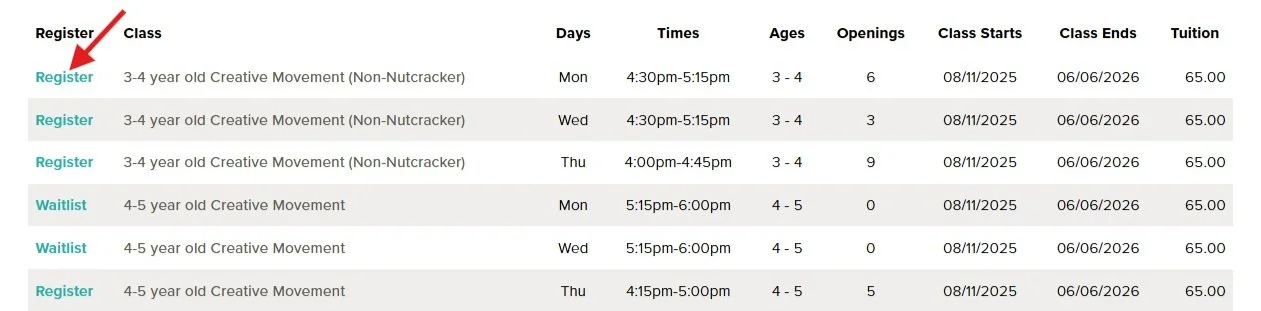
2. Click on the Season button that you are interested in registering for, or scroll the page to view different seasons of classes. Classes within that season will be listed below the season title (see below). When you find the class you wish to register for, click the REGISTER button to the left of the class.
3. You will then see the Account Registration page. If you already have an account, it will be listed under your email address. (If you have ever been to Danceworks, you can check to see this by clicking Already a Customer? Click Here to Login and then click the FORGOT PASSWORD button.) If you have never been to Danceworks, you will fill in the blanks as you scroll down.
4. If you would like to select additional classes to register for, you will click on the blue SELECT ANOTHER CLASS button about halfway down the page, prior to agreeing to our policies.
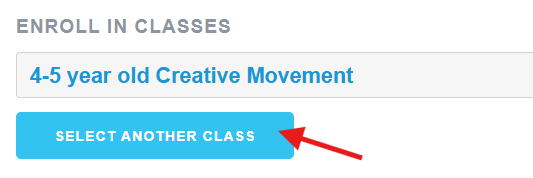
5. Each class you register for will be listed here. Agree to the policies, enter any comments you would like to share, then click ADD CREDIT CARD. Enrollment is not fully complete until the payment is submitted and registration is completed. Once you have entered your payment information, click SUBMIT REGISTRATION.

Enrolling after a TRIAL CLASS:
After your trial class, just let us know if you're ready to enroll! You can tell us at the front desk or reply to the follow-up email we’ll send the next day. We’ll switch your status from ‘Trial’ to ‘Enrolled’ and confirm once it’s done. Then, log into your portal (see instructions below) to update your contact info, waivers, and payment details.
Once on the Danceworkswax.net site, click on the REGISTER Tab from the Menu. Click on the button, Skip to the Parent Portal.
Under the Green ‘Sign In’ Button, click on RESET PASSWORD. Enter the email address that you received your trial information at and you will receive an email to create your password. (Your account was created in order to schedule your trial, so you do not need to create an account!)
Once you have reset your password, go back and login to your portal account.
From the menu, click on ACCOUNTS. Once in your account, you can click through STUDENTS, BILLING & PAYMENTS, and POLICIES options to edit each section.
Enrolling as a CURRENT Student:
From the website:
1. Login to your Portal Account HERE. Click on the green BROWSE button under “Looking for Activities” Menu and choose CLASSES.

2. From this page, you can filter the class options if you choose to narrow your search. The Filter button is near the top of the class list. The classes listed should populate based on the age of the student(s) in your portal account. If you have more than one student, more ranges of classes will appear.

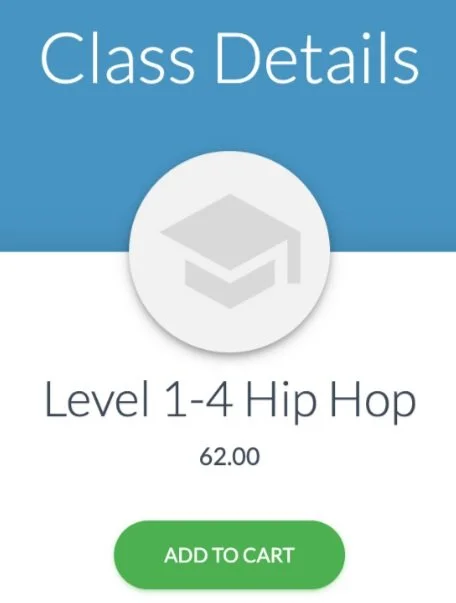
3. To choose a class to register, click on the class name. This will bring you to a page with the Class Details. You will then click the ADD TO CART button.
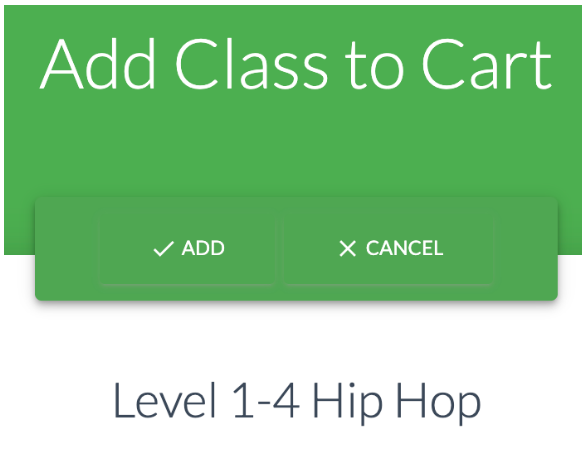
4. On the next page, you will need to click the checkbox for the student which you are enrolling into the class, then click ADD. You will then either click CHECK OUT if that is the only class you would like to register for, or CONTINUE SHOPPING if you would like to choose more classes.
5. Once you are done choosing the classes to register, click CHECKOUT. You will be brought to the page to complete your enrollment and pay any fees due at that time. You can check all of your class enrollments on this page, then click the NEXT: PAYMENT button at the bottom of the page.
6. Select your Payment from the drop down menu or add a new form of payment if needed. Then click the MAKE PAYMENT button at the bottom of the page to complete your enrollment.
In the Danceworks App or Parent Portal:
Open up the Danceworks App and log in to your portal. Then you will click the REGISTER option on the Menu. A list of different sessions will populate. (To register for classes for the NEXT Fall season, you will click on the 2026/2027 FALL/SPRING option. There are also Short Session Classes, and Summer Class options)
Classes will populate based on the ages of your dancer(s). Scroll through the list and choose the first class you would like to register for and click REGISTER. You will see the Class Details page. Click on ADD TO CART.
To complete your registration, you will use the same instructions from Step 4 from the Website Instructions above.
Pro Tip: To save the Parent Portal URL, add this link to your bookmarks or access from our website: https://app.jackrabbitclass.com/jr3.0/ParentPortal/Login?orgID=527038